To back up your Suno songs, export the audio to your computer, keep an index of the tracks and their Suno links, then make a second copy on another drive or in cloud storage. Start with finished songs and drafts you would have trouble recreating.
Choose the right Suno backup route
For your own Suno Library or Workspace, start with Suno's download instructions and check the current download allowances if a track is unavailable. Use these UseSuno tools when you have supported links and permission to save the tracks.
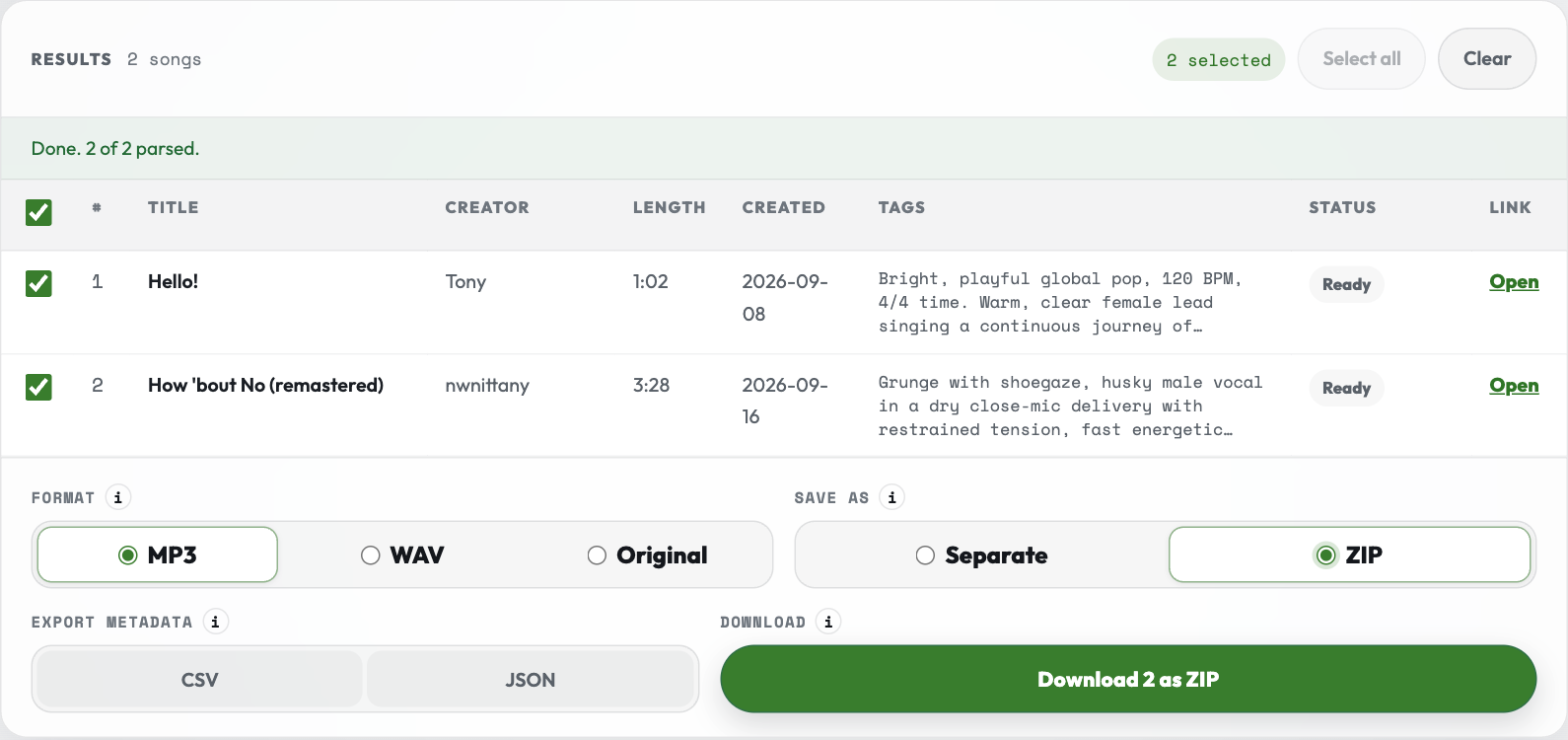
Back up multiple Suno songs in a ZIP
- In Bulk Downloader, paste one song link per line and choose Load songs.
- Check the titles against your list and select the tracks you want.
- Choose MP3 for a listening copy that carries the Suno song links. Choose WAV or Original when those better suit your editing or storage needs.
- Choose ZIP and click the download button. For two tracks, the button reads Download 2 as ZIP. For a large selection, save each package the tool offers. Keep the tab open while the browser prepares it.
- If you want a spreadsheet index, click CSV separately and store it beside the ZIP.
In our two-track test ZIP, each MP3 had a different Suno song URL in its Comments tag. After extracting the files, you can use the tags to match each MP3 to the original. See the Music app instructions to read the link on Mac.
Keep one folder per project or release
Name the folder with the project and export date, such as Night Drive - 2026-11-20. Keep the audio, an index, and any lyrics or cover files you want to preserve. Put the song title, version, Suno URL, and filename on the same row in the index. If you saved two edits of the same song, add a label such as original, remaster, or sent-to-collaborator.
Night Drive - 2026-11-20/
  audio/
    01-night-drive-v1.mp3
    02-night-drive-remaster.mp3
  extras/
    lyrics.txt
    cover.jpg
  tracks.csv
In Bulk Downloader, the CSV is a list of songs that loaded. Compare it with the files you saved and remove rows for songs outside this backup. Add a filename column if you renamed the tracks, so you can match an MP3 to its Suno URL without opening the Music app.
Keep WAV, stems, or video files in clearly named folders when you have them. Check the contents of each export and save any missing lyrics, artwork, prompts, or notes separately. Keep the original audio file you intend to edit or deliver alongside any MP3 you make for listening.
Verify the backup before making a second copy
- Open the ZIP and extract it. Count the audio files and compare the count and titles with the tracks you selected.
- Play a track from the beginning and near the end. Check other tracks when you see an unusually small file or the downloader reports an incomplete package.
- Open the index and verify a song link against the matching file. Retry any missing tracks and add those files to the same project folder.
- Copy the folder to a second location. Open a track from that copy to check that the files are available there too.
If the ZIP is missing songs
If Bulk Downloader reports an incomplete ZIP, use Retry failed songs to request the missing tracks. Extract the retry package to a separate folder first. Compare it with your index and copy across the files you were missing. A ZIP that opens can still have fewer tracks than you selected.
Test a restore from your second copy
Copy one MP3 and its index row from the second backup into a temporary folder. Play the file and confirm the row points to the same song. If you use Apple Music to listen offline, keep this folder outside Music so you can recover it if the library or sync settings change.
When you make a new export, keep the earlier folder until you have checked the new one. That gives you a way to recover an earlier mix, file, or note if you need it later.