Why your own playlist needs to be public
A playlist that has not been made public can fail to load here, even when its URL is correct. In our September 30, 2026 check, a non-public playlist returned a 404 and “Playlist not found” from Suno. After the same playlist was made public, the downloader could retrieve its four songs. This is an observed access requirement, rather than a claim that every failed playlist is private.
This guide is for downloading your own content. Playlist Downloader reads a publicly accessible playlist link; it does not sign in to your Suno account or access your private library. A public setting makes the playlist accessible to others, so choose this route only for a playlist you want to expose. If you prefer to keep it private, use the download options available in your own Suno account instead.
Playlist visibility and song visibility are separate
The setting shown here belongs to the playlist. You do not need to treat the Publish control beside each song as the playlist setting. Suno documents song publishing separately in its profile visibility guide. The screenshots below show the playlist-level Make public control.
Check your own content first
Review the songs in the playlist before changing its visibility. Select only songs you created and have the rights to download. Making a playlist public does not change ownership, grant commercial-use rights, or confirm that every track can be retrieved. Use Suno’s official download route when your intended use requires it.
Make your playlist public on desktop
- Sign in to the Suno account that owns the playlist.
- Open Library and navigate to your playlist.
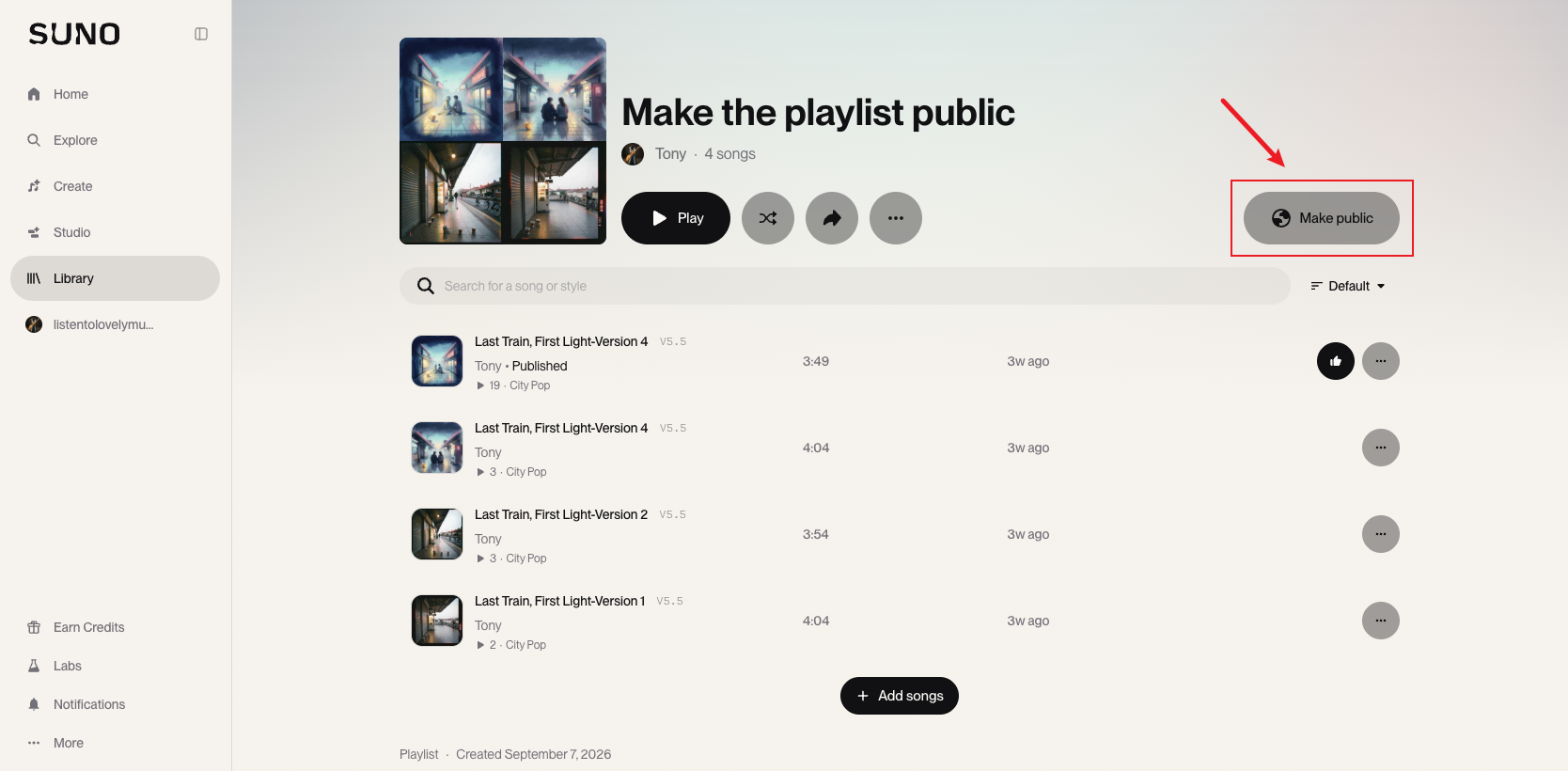
- If the playlist page shows a Make public button, select it. The first screenshot highlights this button on the right side of the desktop page.
- Alternatively, open the three-dot menu beside the playlist’s playback controls and turn on Make public.
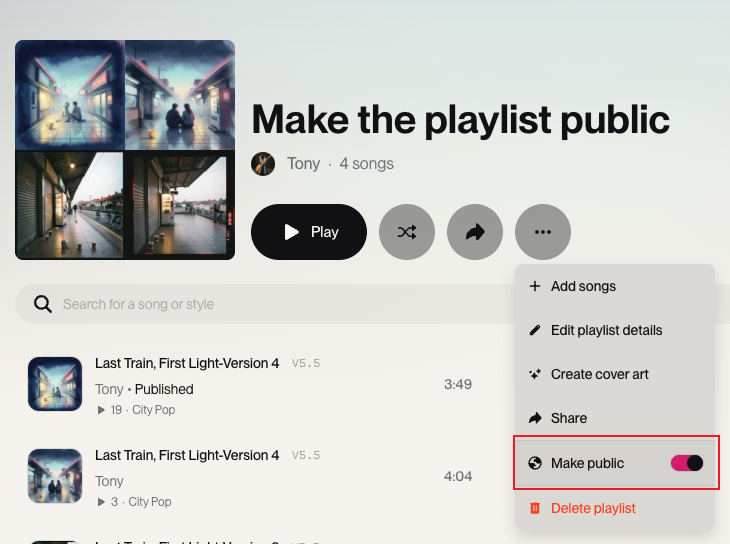
The screenshot shows the menu toggle enabled. Menu placement can vary with the window size and Suno interface updates. Use the control attached to the playlist header, rather than the three-dot menu beside an individual song. You are changing the collection’s visibility, not editing a track.
Copy the playlist link after changing visibility
Open Share in the playlist menu and copy the link, or copy the playlist page URL from your browser. It should have the form https://suno.com/playlist/…. Keep the full ID after /playlist/. A song link or profile link belongs in a different downloader.
Make your playlist public on mobile
- Open your own playlist in Suno on your phone.
- Tap the three-dot button beside the playlist’s Share and playback controls.
- Turn on Make public in the playlist menu.
- Use Share to copy the playlist link.
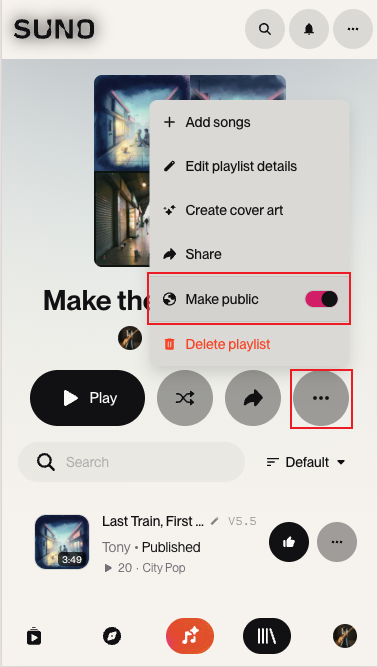
This screenshot records the mobile interface supplied for this guide. If your app has a different layout, look for the equivalent playlist menu; you can also open Suno in your phone’s browser. Confirm that you are signed in as the owner if the visibility control is missing.
Load and download your own songs
- Open the Suno Playlist Downloader.
- Paste your public playlist URL and select Load playlist.
- Wait for the playlist title and song list to appear. Check that this is the collection you intended to load.
- Select the songs you want to save. Use the selection controls for the songs shown, or choose individual tracks.
- Choose Export selected as ZIP and select MP3, WAV, or Original audio. Individual audio buttons also let you save one track.
- Keep the page open while it prepares the audio and archive. Confirm that your browser has saved the file before leaving.
Choose a format for your next step
MP3 is convenient for listening and sharing your own files. WAV is much larger and may suit an editing workflow. Original audio skips conversion and is usually the quickest option when you simply want to save the available source container. Available lyrics are included separately in a ZIP. A selected track that cannot be retrieved may be omitted, so compare the resulting files with your selection.
If your playlist still cannot load
First reopen your playlist in Suno and check its visibility. Then copy a fresh playlist link and try again. If Suno itself returns 404, the downloader cannot recover a playlist it cannot access. If the playlist is public and opens normally, temporary network or service problems may be responsible; retry later.
The error dialog links back to this guide and offers Report this problem. Describe what happened, review the playlist URL and error details, then continue in your email app and press Send. Do not send your Suno password or account credentials. For download permissions and approved-channel requirements, read the download and usage policy guide.