To add Suno songs to Apple Music, save them as local MP3 files and import them into Music on Mac or Apple Music on Windows. You can then listen offline on your computer. If you save a tagged MP3 with UseSuno, you can use its Comments field on Mac to reopen the original song in Suno.
Save your Suno song as an MP3
If you already have an MP3, go straight to the import steps. For a song in your Suno library, check the download options in Suno. You can also use the downloader below for a supported song link you have permission to save.
- Paste the Suno song link and click Download options.
- Choose Audio, then MP3.
- Save the file in a folder you can find again. If it came in a ZIP, extract the MP3 first.
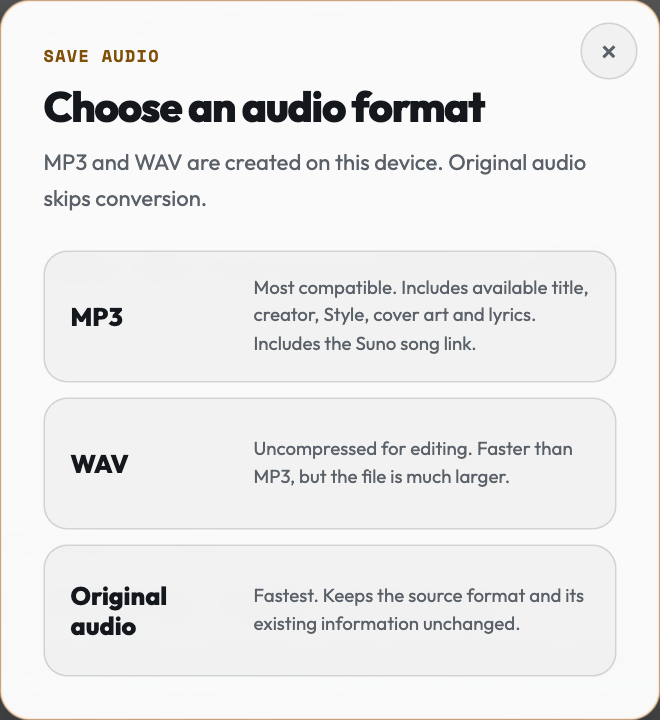
UseSuno stores the original song URL in the MP3's website and comment tags. Choose MP3 when you want those tags. The audio format guide explains when you might prefer WAV or the original audio.
Import Suno MP3 files on Mac or Windows
On Mac
Open Music. Choose File → Import or File → Add to Library, depending on your Music settings, then select the MP3. You can also drag the file into the Music window. Open Library → Songs and play the song once. Depending on your Files settings, Music may keep a reference to the file in its current folder, so check before moving or deleting it. Apple's Mac import instructions
On Windows
Open Apple Music. In the sidebar, open the Sidebar Actions menu, choose Import, and select the file. Find the track under Songs. The menu is in a different place from the Mac version. Apple's Windows import instructions
Find the original Suno song in Comments
On a Mac, select the imported UseSuno MP3 in Music and press Command + I. Open Details and look for Comments. Copy the suno.com/song/… address and paste it into a browser to reopen the original song when you're online.
Use the link when you hear something worth checking later. An example listening note is 1:14 · chorus vocal doubles · version B. Paste the URL from Comments beside the note once you're back at your Mac. You can return to the matching Suno song even if both versions have the same title.
If Comments is blank, check that you imported the tagged MP3 export. If you already have a copy from another source, keep the Suno link in a note beside that file.
Make a playlist for offline Suno reviews
Keep the versions you're comparing together. In Music on Mac, choose File → New → Playlist. In Apple Music on Windows, choose the Add button beside Playlists, then New Playlist. Name it after the project, such as Suno Review: Night Drive. Drag the tracks from Library → Songs onto the playlist in the sidebar. Mac playlist instructions and Windows playlist instructions
Put the two versions next to each other, and keep the playlist name in your listening notes. When both titles look the same, open Comments on the Mac to confirm which original URL matches the take you want to revisit.
Play your Suno songs offline on iPhone
With Sync Library
Use the same Apple Account on your computer and iPhone. This route requires an Apple Music or iTunes Match subscription. After importing the files on your computer, turn on Sync Library on the devices you want to use. Apple's Sync Library setup
- Mac: In Music, open Music → Settings → General and select Sync Library.
- Windows: In Apple Music, open Sidebar Actions → Settings → General and turn on Sync Library.
- iPhone: Open Settings → Apps → Music and turn on Sync Library.
- Wait for the computer to finish syncing. The sidebar shows Updating Cloud Library while it works.
- On your iPhone, open Music → Library → Songs. When the track appears, touch and hold it and tap Download. Check Library → Downloaded for the copy on the phone. Apple's offline playback steps
- Play part of the song with Wi-Fi and mobile data turned off before you rely on it offline.
Sync just the review playlist with a cable
- Connect and unlock the iPhone. Select it in Finder on Mac or Apple Devices on Windows.
- Open the device's Music section and enable music syncing. Choose the option for selected music, then check the review playlist you made on the computer.
- Click Apply, or Sync if the transfer doesn't start. Open the playlist in Music on the phone and play a track before disconnecting.
If the phone is already using Sync Library, manual music syncing may be unavailable. Use the cloud steps above if you want to keep that setup. If Finder offers to replace music from another computer's library, check what it will remove before continuing.
If a Suno song won't sync or play
- Missing on the computer. Check the Downloads folder, extract the ZIP if needed, and play the MP3 outside Music. Then import the audio file itself.
- The MP3 shows up in Files on your iPhone. Save a copy to your computer, import it into Music there, then use Sync Library or the cable steps to add it to the phone's Music library.
- The song plays on the computer and never appears on the phone. Check the Apple Account on both devices. If you use Sync Library and the song is still missing, check Cloud Status on the computer where you imported it. Apple's guide to missing or grayed-out songs
- The song is in Music and only plays online. Download it on the iPhone and check for it under Library → Downloaded.
- Music has lost the file. Use the library's file location to find the original, or reimport the MP3 from your local Suno backup.