To make a music video from a Suno song, start with the exact audio you want people to hear. Mark the main changes in the track, choose what viewers should follow on screen, and edit one chorus before building out the rest. A lyric video can carry the song with typography and a background. A scene-based video can use footage, animation, or AI-generated shots.
If the song page already includes a video you want to save, follow the Suno video download guide.
Prepare the audio for your edit
Save a local copy of the mix you plan to publish. Listen for any silence at the beginning and check that the ending has the fade or tail you want. Use that same file through the edit. A newer mix with extra silence or a shorter intro can shift every cut and lyric cue, even when the track title stays the same.
Write down the first vocal, first chorus, biggest instrumental change, and last sung line. Add the lyric version or a copy of the chorus with those timestamps. Use a song and visual assets you have permission to publish. The Suno download and usage guide explains what to check for your track.
Choose what viewers will follow
- Lyric video. Choose this when the words carry the song. Build around one readable type style and let the background breathe during dense lines.
- Scene-based music video. Choose this when an image, setting, or character can show what changes over the course of the song. Pick one visual idea you can bring back in the chorus.
- Hybrid. Use scenes for the verses and bring the hook on screen in the chorus. Reserve a consistent part of the frame for words so the move into typography feels intentional.
Storyboard one chorus first
Imagine a 24-second chorus about the last train home. Hear where the vocal comes in, where the drums change, and where the singer leaves a gap. Those moments can carry four visual decisions. The timings below are illustrative. Mark the equivalent moments in your own recording.
| Time | Audio cue | Lyric-led edit | Scene-led edit |
|---|---|---|---|
| 0:42–0:48 | Kick enters under the hook | Reveal the first hook line against a still background. | Cut wide as the empty platform lights come on. |
| 0:48–0:54 | The vocal answers itself | Bring the response in as its own line. | Cut to a ticket turning over in the singer’s hand. |
| 0:54–1:00 | Full drums return | Repeat the hook with a larger type size. | Return to the wide frame as a train rolls into view. |
| 1:00–1:06 | Last word rings into the verse | Hold the last line through the sustained note. | Hold on the open door, then cut at the verse entry. |
Play the rough chorus once without stopping. If the shot changes pull your attention away from the title line, hold the current shot a little longer. If the chorus feels flat, try one cut on the drum entrance first. When this section works, reuse its type treatment or visual motif in later choruses.
Build the lyric video
UseSuno MV Studio works in your browser with local audio and lyrics. Start with your chorus and preview it at phone size. Break a long line where the singer takes a breath or finishes a thought. Give a fast line enough time to read, and let a sustained phrase stay visible for the held note.
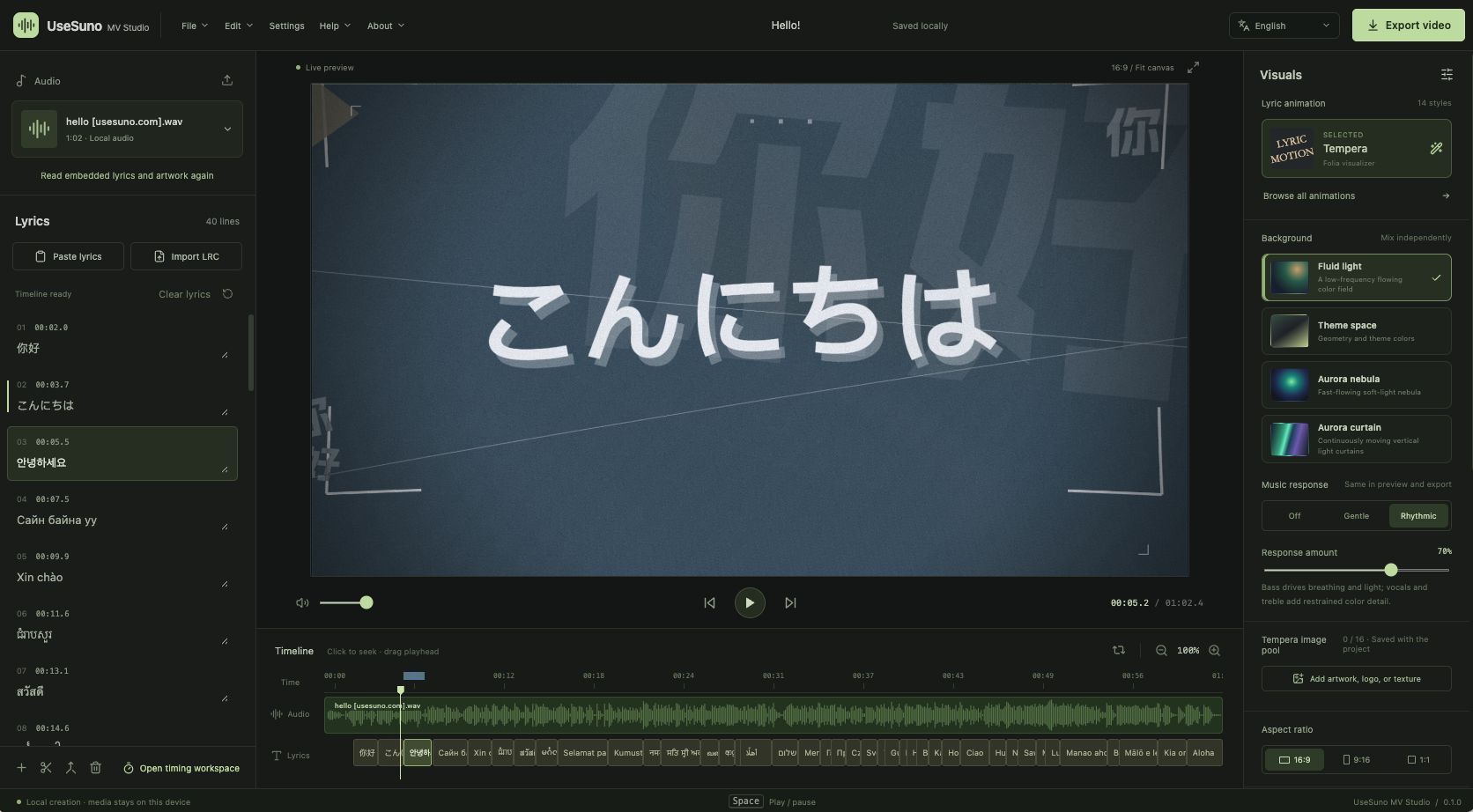
For file imports, LRC timing, animation settings, and export controls, follow the step-by-step MV Studio tutorial.
Build a scene-based video with AI
Start with the same chorus and a one-sentence treatment. For the train example, you might write, “A lone singer waits under amber platform lights as the last train arrives.” Keep a reference frame for the character or location so you can compare clips for continuity. Generate or assemble the smallest section your chosen tool supports and check how it plays against the audio before expanding it.
UseSuno promotes the three tools below and may earn a commission through the Visuals.fm and Atlabs links.
Visuals.fm is a separate service from the Visuals feature inside Suno.
Review the edit and export
- Check the sync. Listen to the final render at the first vocal and the last chorus. Watch for lines that appear after the singing starts, a cut that misses the downbeat, or a singing close-up with a visible lip-sync mismatch. A wider shot can carry the same moment if the close-up needs replacing.
- Make separate versions for different frames. Export a 16:9 cut if you are making a standard horizontal YouTube video. For a vertical teaser, reframe the subject and place lyrics away from the edge where app controls can cover them. Check the target layout on a phone. YouTube aspect ratio guidance
- Play the exported file. Open the MP4 outside the editor, play the first and last few seconds, then jump to the chorus. Save the project, final mix, source visuals, and Suno song link together so you can make another cut without recreating the timeline.